How to Lock the iPhone Screen for Baby in 7 Easy Steps
You can lock your iPhone screen for your baby in 7 easy steps by enabling Guided Access in Settings under Accessibility.
This feature is perfect for parents who want to keep their little ones safe while using the device. It prevents accidental taps and stops your baby from exiting the app they are using.
First, set a unique passcode or enable Face ID for added security.
Then, open the app your baby will use and triple-click the Side or Home button to start Guided Access. You can customize touch controls and lock the screen to just one app, which is super handy for keeping things simple.
When you’re ready to unlock the phone, just triple-click again and enter your passcode.
Keep going to discover more helpful tips and controls to make your iPhone baby-friendly!
Key Takeaways
- Enable Guided Access in Settings > Accessibility and set a secure passcode or Face ID for control.
- Open the desired app and triple-click the Side or Home button to activate Guided Access mode.
- Customize Guided Access by disabling touch input or blocking specific screen areas to prevent accidental taps.
- You can also restrict hardware buttons and set time limits if needed before starting the Guided Access session.
- When you want to end, just triple-click the button, enter the passcode or use Face ID, then tap “End” to unlock the device.
Why Lock Your iPhone Screen for Your Baby

Locking your iPhone screen for your baby can prevent accidental taps and keep them focused on the app or video you want them to see. When you lock the screen, you reduce the risk of accidental purchases and unwanted calls, which helps maintain child safety.
Guided Access is a great tool that lets you disable certain screen functions, ensuring your baby won’t exit the app or disrupt the experience with random touches. This controlled screen time supports a safer environment by limiting distractions and keeping content appropriate.
How to Enable Guided Access on Your iPhone
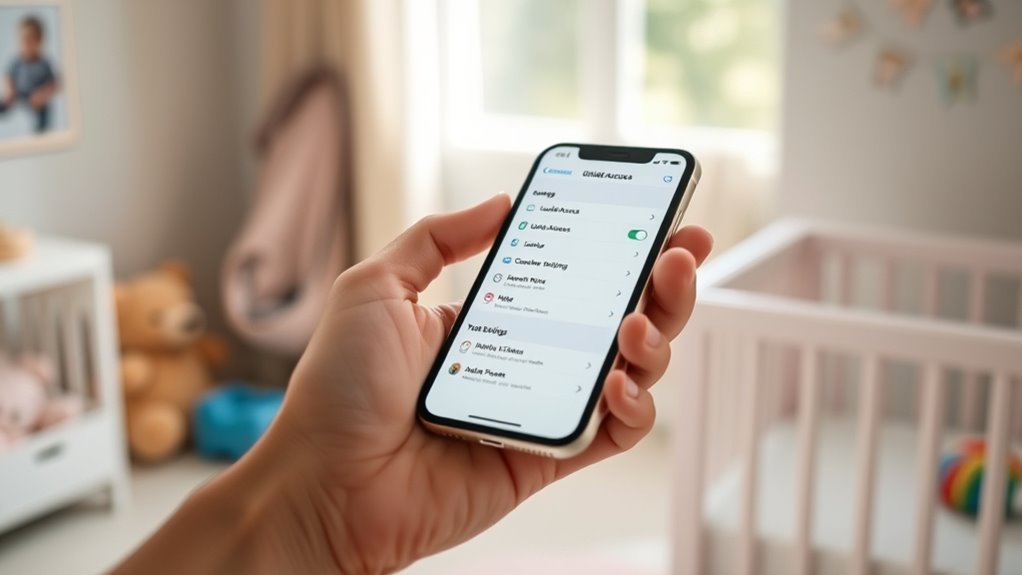
To enable Guided Access, open your Settings app and go to Accessibility. Then, toggle Guided Access on.
Next, set a passcode or enable Face ID/Touch ID to keep the feature secure. This way, only you can end the session.
When you’re ready, open the app your baby will use. Then, just triple-click the Side or Home button to start Guided Access with your preferred settings. Easy, right?
Activating Guided Access
Enabling Guided Access on your iPhone only takes a few simple steps. First, open Settings, go to Accessibility, and toggle Guided Access on. This feature lets you lock an iPhone screen within a single app, perfect for baby use.
Before starting, set a passcode or enable Face ID/Touch ID for security.
Next, open the app your baby will use. To activate Guided Access, triple-click the Side or Home button. You’ll see options to customize the session—tap Options to disable touch if you want to prevent accidental taps.
When ready, tap Start to lock the screen to this app. Now, your iPhone stays focused, and your baby can safely explore without wandering into other apps or settings. Easy, right?
Setting Passcode Options
Although turning on Guided Access is straightforward, setting a passcode or enabling Face ID/Touch ID is essential to keep the session secure. This prevents your baby from exiting the locked app or making unauthorized Settings changes.
To set your passcode options, follow these steps:
- Go to Settings > Accessibility > Guided Access, toggle it on, then tap Passcode Settings.
- Set a Guided Access passcode or enable Face ID/Touch ID for quick, secure access.
- When activating Guided Access by triple-clicking the Side button, tap Options to disable touch or hardware buttons if needed.
Starting Guided Access
When you want to keep your baby safely focused on a single app, you can quickly activate Guided Access by opening that app and triple-clicking the Side or Home button.
Before this, make sure you’ve set a Guided Access passcode in Settings under Accessibility > Guided Access, or enabled Face ID or Touch ID to lock your iPhone securely. It’s a good idea to have that ready first.
After triple-clicking the Home button, tap Options to customize features like disabling touch or hardware buttons. Then, just tap Start to begin the session.
This locks your iPhone to the selected app, preventing your baby from exiting it. When you want to end Guided Access, triple-click the Side or Home button again and authenticate with your passcode, Face ID, or Touch ID.
That way, you get full control over the device again. Easy and safe!
Set a Passcode or Face ID for Guided Access
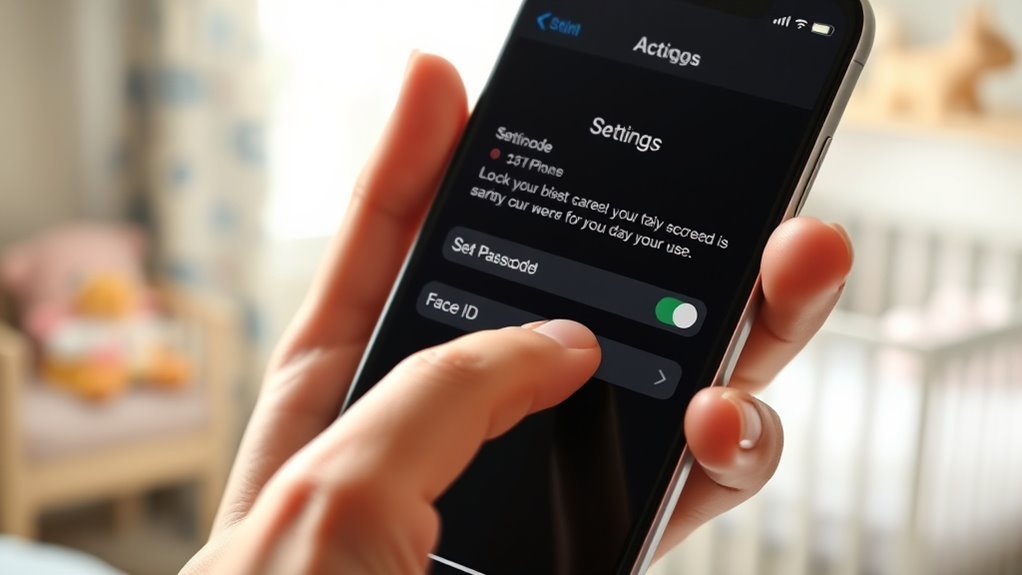
Start by setting a passcode for Guided Access to keep your child securely within the app you choose. This passcode prevents unauthorized exits, ensuring your baby stays focused.
Here’s how to do it:
- Go to Settings > Accessibility > Guided Access, toggle it on, then tap Passcode Settings.
- Create a unique passcode separate from your Screen Time passcode for added security.
- Optionally, enable Face ID or Touch ID to quickly exit Guided Access without entering a passcode.
Setting this up helps you lock the iPhone effectively, giving you control while your child explores safely. Remember to write down your passcode in a secure place—you’ll need it to exit Guided Access later.
This step is essential before you set a Screen Time passcode or fully lock the iPhone for your baby.
Lock the iPhone to One App for Your Baby
Locking your iPhone to one app lets your baby explore safely without accidentally switching to other apps. To do this, turn on Guided Access by going to Settings > Accessibility > Guided Access and enable it.
Set a passcode or use Face ID/Touch ID for security. Then, open the app you want your child to use and triple-click the Side or Home button to start Guided Access.
Tap Start to lock the screen to that app, preventing your child from leaving it. Guided Access works alongside Screen Time to help you manage your child’s device use effectively.
When you want to exit, just triple-click the button again, enter your passcode, and tap End. This lock guarantees your baby stays engaged with just one app, keeping distractions at bay.
How to Disable Touch or Customize Touch Areas
You can disable all touch input during Guided Access to prevent any accidental taps from interrupting your baby’s screen time.
If you want more control, customize touch zones by circling areas that should ignore taps. This way, you keep the content playing smoothly while managing which parts of the screen remain interactive.
Disabling Touch Input
Although keeping your baby entertained on an iPhone can be challenging, disabling touch input during a Guided Access session guarantees they can’t accidentally interrupt the content.
Guided Access lets you lock your device to a single app, which is perfect for screen locking and preventing distractions. To disable touch input, just follow these simple steps:
- Open the chosen app and triple-click the Side or Home button to start Guided Access.
- Tap “Options” and toggle off “Touch” to disable any screen interactions.
- Begin the session so your baby can watch content uninterrupted without accidentally tapping or exiting the app.
This disables touch input completely, making sure your baby stays focused and the content plays smoothly. It’s a safe and effective way to lock the screen for little ones.
Customizing Touch Zones
Disabling touch input during Guided Access is a great start, but sometimes you’ll want to allow interaction in certain parts of the screen while blocking others.
To customize touch zones, launch the app and triple-click the Side or Home button to enter Guided Access. Tap “Options” to either disable touch input entirely or selectively customize touch zones by drawing circles around areas you want to block.
This lets you create selective interactivity, so your baby can tap only where it’s safe. Once you’ve adjusted these settings, tap “Start” to lock the app with your customized touch zones active.
This way, you prevent accidental taps outside allowed areas, making the experience safer and more enjoyable for your little one while keeping the app locked securely.
Use Screen Time With Guided Access to Lock iPhone Screen
Locking your iPhone screen for a baby becomes simple when you use Screen Time alongside Guided Access. Start by enabling Guided Access in Settings > Accessibility and set a passcode to secure it.
Then, open the app you want your baby to use and triple-click the Side or Home button to lock the app with Guided Access. To enhance safety, turn off Touch in the Guided Access options to prevent accidental taps.
To use Screen Time effectively, follow these three steps:
- Set parental controls in Screen Time to restrict app usage and content.
- Use Guided Access to lock the app in place and disable Touch ID temporarily.
- Combine both to guarantee your baby stays within safe limits without distractions.
How to End Guided Access and Unlock Safely
When you’re ready to end Guided Access, simply triple-click the Side or Home button on your iPhone or iPad. To release and end the session, enter your Guided Access passcode or use Face ID if you’ve set it up.
After authentication, tap “End” in the top-left corner to return to normal use. For added security, make sure your Guided Access passcode differs from your device release code. This prevents accidental or unauthorized exits from the locked app.
Also, remind your child that trying to exit the app during Guided Access isn’t allowed. By following these steps, you can safely end Guided Access and release your device without hassle, keeping your baby’s screen time secure and controlled.
Frequently Asked Questions
How to Lock iPhone Screen for Babies?
You can lock your iPhone screen for babies by enabling Guided Access in Settings. Then, just triple-click the Side or Home button while you’re in the app.
If you want, you can disable touch too. This way, your baby won’t accidentally exit the app or interact in ways you don’t want. It’s a handy little trick for keeping things safe and simple!
How Do I Lock My Screen When My Child Is Watching?
You lock your screen by enabling Guided Access in Settings. Then, open the app your child will watch.
Triple-click the Side or Home button to activate it. Use a passcode or Face ID to secure it and prevent exits.
It’s pretty simple once you get the hang of it! This way, your child stays on the app without accidentally closing or switching.
How to Lock Screen so Baby Can’t Change It?
Did you know toddlers tap screens over 200 times an hour? Lock your iPhone using Guided Access to prevent changes—triple-click the side button, disable touch if needed, and set a passcode so your baby can’t exit or alter settings.
It’s pretty simple once you get the hang of it. Just a few taps and you’re all set! This way, your little one can play without messing up your phone.
How Do I Lock My iPhone Screen so It Doesn’t Move?
You lock your iPhone screen from moving by enabling Guided Access in Settings. Then, open the app you want to use and triple-click the Side or Home button.
This freezes the screen, so nothing moves until you exit Guided Access with a passcode. It’s super handy when you want to keep things locked in place without any accidental swipes or taps.
Conclusion
Now that you’ve secured your iPhone screen for your baby, you can breathe a little easier knowing they won’t wander off into apps or settings. It’s like handing them a toy with invisible strings—you’re in control, even when they’re exploring.
With Guided Access and Screen Time at your fingertips, you’ve turned your phone into a safe, baby-proof zone. These features keep your little one entertained without the risk of accidental taps or changes.
So go ahead, relax—your iPhone is secured, and your peace of mind is released. Locking the iPhone screen for your baby is a simple yet powerful way to protect both your device and your child. It’s all about creating a safe, controlled space where your baby can enjoy screen time without any worries.